




Users frequently find legacy systems counter-intuitive and hard to navigate. This inevitably leads to dissatisfaction, operational errors, and unnecessary workarounds. Here is how capSpire helps you give your Openlink user experience a ‘Rom-Com’ style makeover.
Groundhog Day
There is a moment with every new client where I log into Openlink for the first time. Each time, I am filled with a mixture of anticipation and anxiety. Anticipation of how we can improve the system together, you ask? Or maybe the anxiety over whether my 20+ years’ experience using Openlink will be sufficient to solve the next problem?
No, merely a mix of hope and dread that Openlink Central will not pop up.
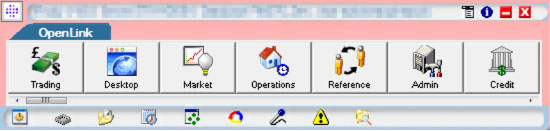
Openlink Endur/Findur was first developed in 1992, when a compact toolbar was probably considered the height of technological aesthetics. Today, it merely serves as a daily reminder that you are using legacy technology, especially set against the modern apps on your phone and laptop.
User experience (UX) describes the overall usability of a system, and recent developments in the field mean most systems can be made more intuitive and satisfying to use. Openlink is no exception, which is why it is so disappointing to see that dumb toolbar pop up. There are so many better screens available! This blog looks at some simple options for improving the Openlink user experience.
Failure to Launch
First, let us start with how you can launch directly to a Desktop so we can finally banish Openlink Central. Introduced around v8, the Openlink Desktop framework lets users combine several pre-configured tabs, commonly grouped by teams or processes. The environment variable AB_AFE_LAUNCH_SERVICE links a user to a saved desktop, using the syntax: OpenLink Desktop,screen_name= followed by the desktop name. Set this and you immediately save every user at least two button clicks per day.

Most screens a user needs are now desktop-enabled, but a few gaps remain, such as Instrument Fixings and Option Exercise. Link these as icons on the toolbar at the top of your desktop. To make the toolbar even more efficient, add Current Date and Current Date Roll so you no longer need to open Market Explorer to roll your own system date. This is also a good place for a shortcut to Cache Clear Session Cache, turning a cache refresh into a single click.
The Ugly Truth
Around v12, ION instructed clients to stop using the old Trading Manager. It was the bane of my existence convincing Openlink consultants that relied on it, let alone my clients. That said, the Explorer framework now fully replaces the old functionality, and yet it remains underutilized by many end users. Data Explorer allows flexible consolidation of different data types and saved queries into a single screen, and v23 finally completed the replacement of Market Manager functionality.
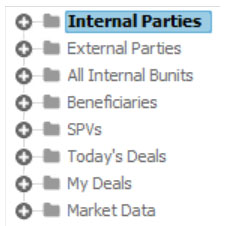
If you miss the ability to run a task on a saved query of trades, configure a Reporting with Listing tab. Any Task that uses the standard ad hoc query param plugin can run in the top panel using the trades returned in the listing panel below it — particularly useful for activities like bulk unmaturing deals with the standard plugin.

The Proposal
Another underutilized feature is the context menu, available from any listing screen (Explorer, Report Builder, Auto Match, Deal Input with Listing, and more). Want to pop up a deal from a Report Builder report? Or did you migrate from the recon module to Auto Match only to lose the ability to click through to the underlying SWIFT message?
Right-click on the header of any system listing and then select Configure > Full Configure. Hidden at the far right of the Columns tab is the context menu configuration, which lets you set up actions such as double-clicking anywhere on a row to feed the transaction number into a deal input viewer to open the deal automatically. Or the MTS Data File Store Viewer by File Ref Id…
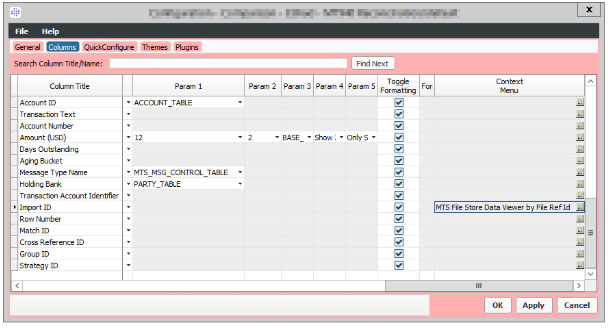
A standard listing screen limits you to the fields available in that table, but in Report Builder and Auto Match, the shortcuts you can create are almost limitless. Plugins can also be configured to run directly from any listing screen. As part of a past LIBOR replacement project, capSpire built a fallback tool that could be executed directly from a listing screen. Or give yourself the ability to immediately cancel/delete any test deal. Things really can be that simple.
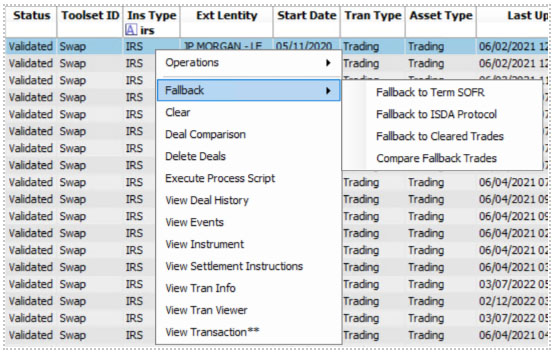
With that we are barely scratching the surface of what is possible with the Openlink user experience.
As Good as it Gets
Poor usability is a major source of user frustration. In Openlink, complex screens and fragmented navigation waste time, increase the risk of mistakes, and encourage users to create workarounds. I have seen too many IT departments force users down unfriendly user table maintenance support routes too many times.
We all get it. This software was developed in 1992, and we are firmly into ‘lipstick-on-a-pig’ territory. We are not going to turn Openlink into Ryan Gosling overnight. That does not mean we need to put up with a poor user experience. Openlink is the definition of a good system, poorly implemented. I am sure it is about time you fixed that.
Contact capSpire to get started on your Openlink user experience.

Ben Jackson
Capital Markets Lead – EMEA